
How to Create a New Chore Rotation
This guide shows how to create a chore rotation in Chorenado for recurring tasks. Whether you’re an existing user or exploring how Chorenado automates team duties, follow these steps to get up and running in no time.
Accessing Chorenado in Slack
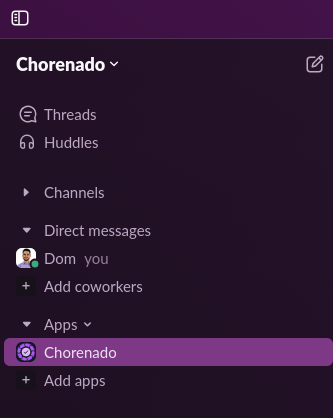
You can access Chorenado from the sidebar under “Apps”. If you just installed Chorenado, the app might not show up there yet. In that case, click on “Add apps” and it should appear near the top of the list.
Creating a New Chore
Basic Information
In the main modal, you can fill out the basic information about the chore.

- Chore Title: (e.g. “Bug Hunter” or “Retrospective Note Taker”): You can add emojis using Slack’s emoji names (e.g. :bug:).
- Chore Handle: (e.g. bug-hunter): A short, unique identifier that you can use to easily tag the person currently on duty.
- Users Eligible for Duty: Chorenado uses a round-robin to distribute the chore fairly and evenly among people in this list.
- Channel: Choose where notifications and updates about this chore will be posted.
Configure the Schedule
From this modal you can configure the rotation schedule for the chore.
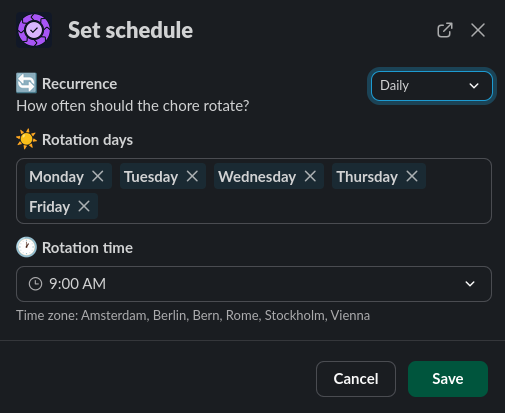
- Recurrence: Decide how often the chore should rotate (Daily, Weekly, or Monthly).
- Daily: Pick which days apply (e.g., Mon-Fri).
- Weekly: Pick a day from the calendar. The chore will rotate on the selected day of the week.
- Monthly: Pick a day from the calendar. The chore will rotate on the selected day of the month.
- Time: Pick the time of day to rotate. It will use the timezone set in “Manage app.” By default, it’s the timezone of the user who installed Chorenado.
Customize Notifications
You can add personality to the chore by setting custom chore messages.
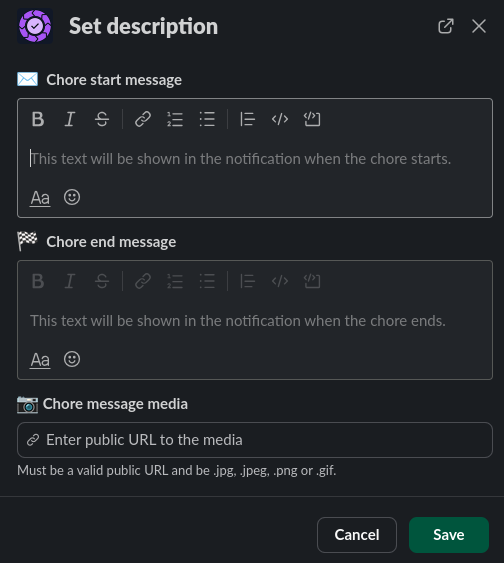
- Chore Start Message: A Slack message shown when the duty begins.
- Chore End Message: Concluding note if the chore has a defined end (e.g., “Thanks for wrapping up the doc review session!”).
- Chore Message Media: Add a URL to an image or GIF.
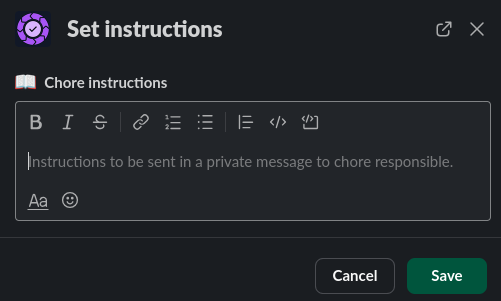
Instructions
Provide any special notes or a checklist to help the person on duty carry out the task. These instructions are sent privately to the user when they’re assigned.
Unleash the Chorenado
Now you’re all set to create the rotation. Don’t worry if it doesn’t feel perfect yet. You can always edit a chore so nothing is set in stone. Feel free to experiment with different schedules, user assignments, and messages until you find the workflow that best suits your team.
Tips for Effective Rotations
- Rotations can feel like tedious chores. Try to make them more engaging by adding gamification and fun notifications.
- Use instructions to link to relevant resources (documentation on Confluence, Jira tickets, Slack messages).
- Make good use of handles for easy communication. Often you’ll need to contact the current person responsible for a chore (e.g., developer on call). Instead of remembering whose turn it is, you can use the handle to tag the relevant person.